AI-Powered JPG to STL Conversion
Turn a photo into a 3D mesh, ready to export as STL. JPG, PNG and WebP supported.
 pictostl
Turn JPG into 3D printable models with AI. Upload an image, get a ready-to-print STL file in minutes
Upload an image to start.
Turn your images into 3D models with flexible quality options, interactive previews, and STL exports for your next printing project.
Turn a photo into a 3D mesh, ready to export as STL. JPG, PNG and WebP supported.
Add photos from different angles to reveal details a single image cannot show.
Choose Basic, Pro or Ultra for the detail you need. Review the credit cost before generating.
Rotate and zoom to inspect the shape before you download.
Set your model size in millimeters, then choose the export format for your workflow.
Upload, generate and download in your browser. No modeling software to install.
From your first image to a downloadable 3D model, in three simple steps.
Explore stunning 3D models created from images using our advanced AI technology.
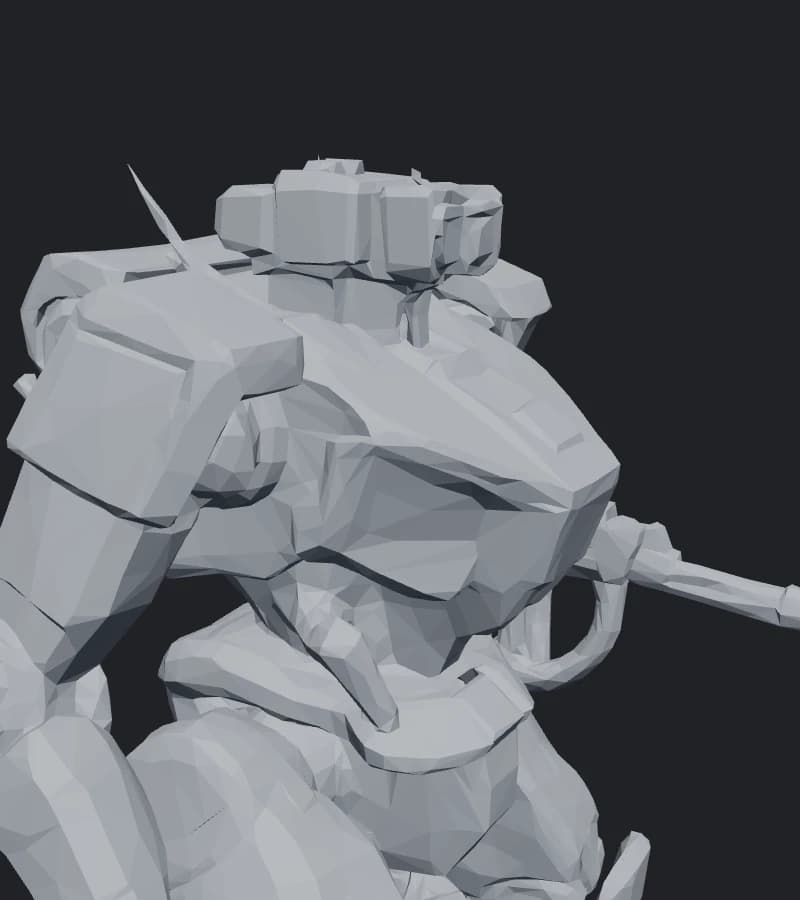
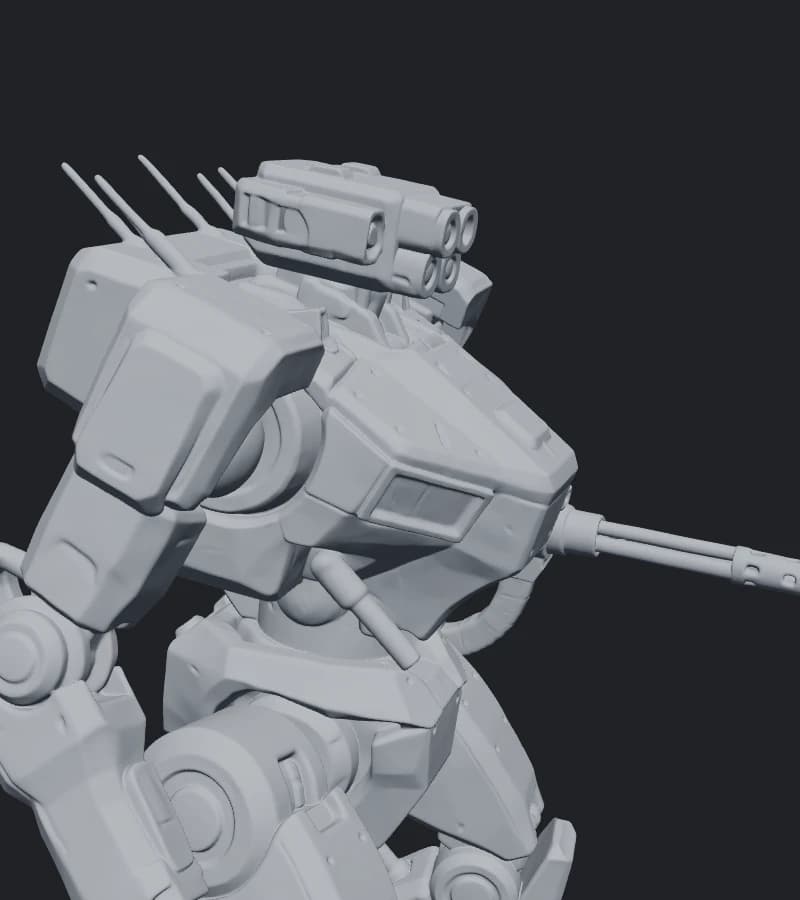
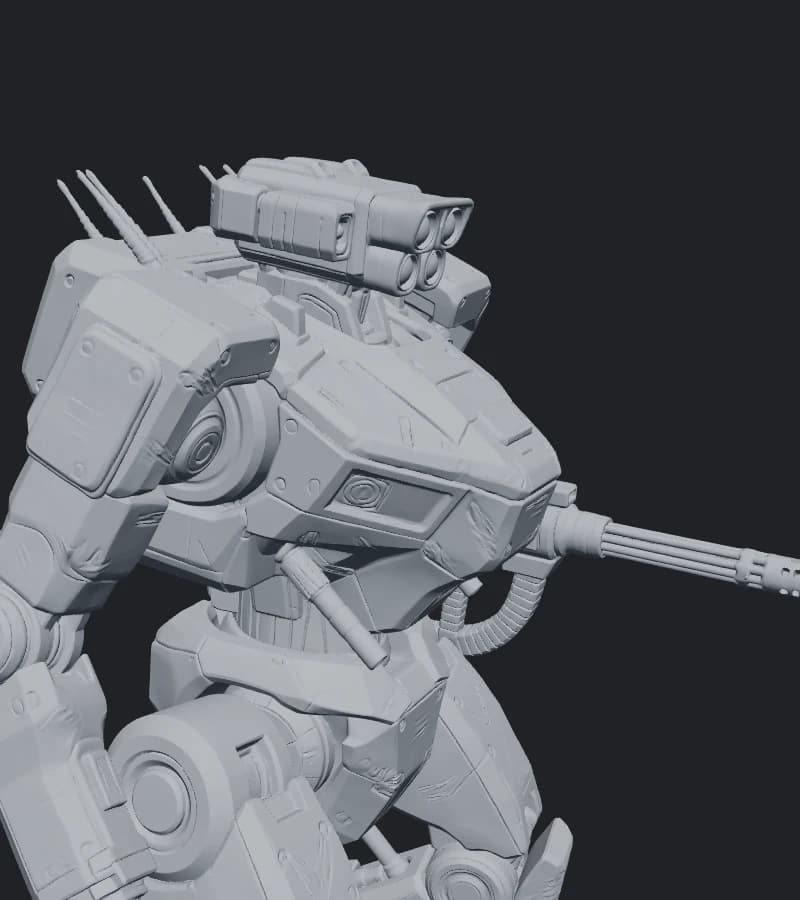
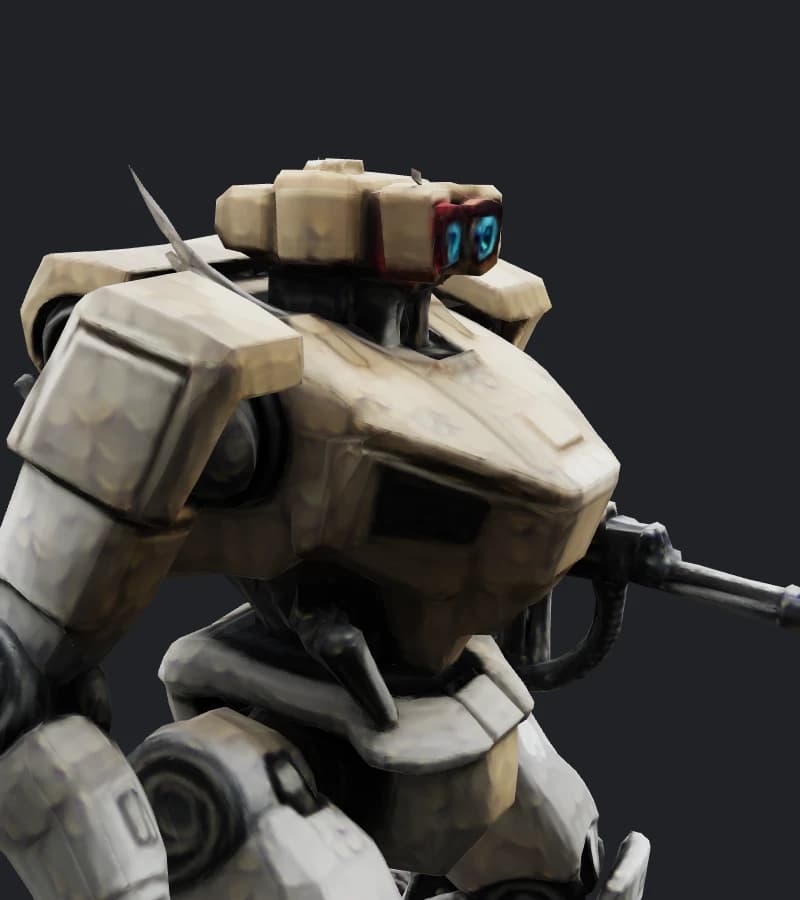
Compare real generated files, from lightweight geometry to detailed models with high-resolution textures.
Compare head and shoulder detail without textures—the geometry retained in STL.
The same close-ups with color and materials reveal the difference in surface detail.
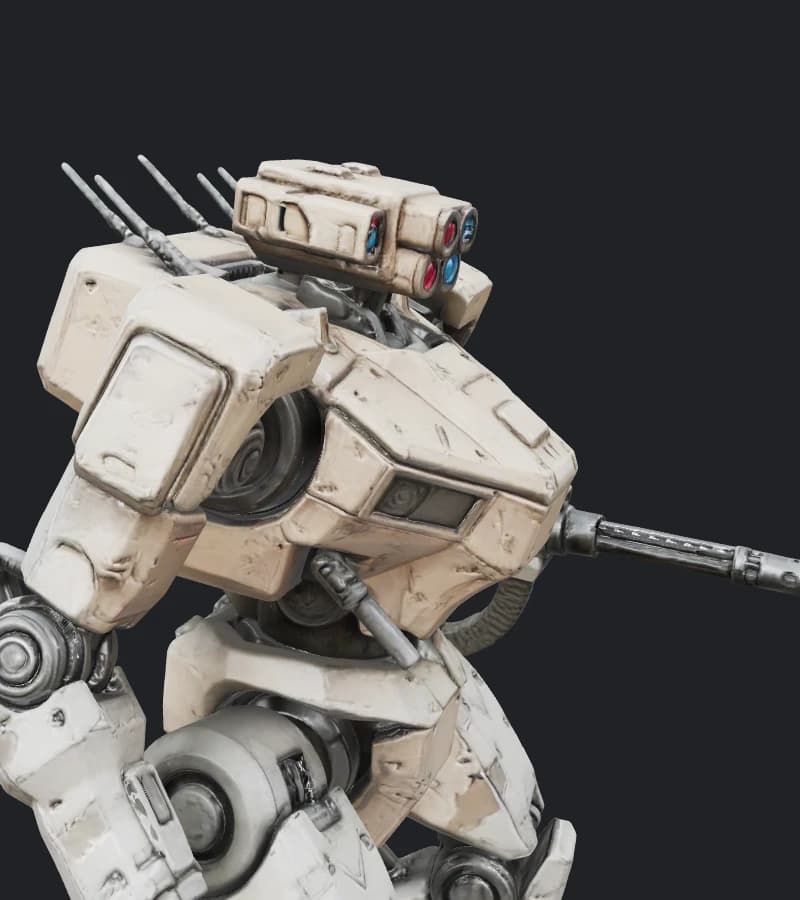
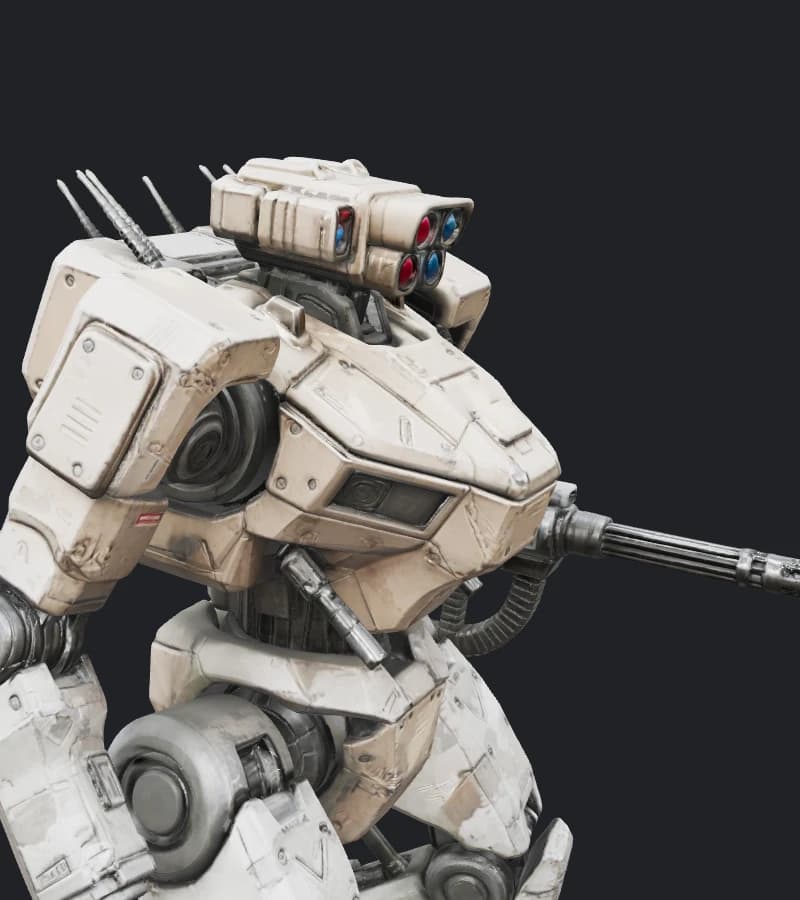
| Model specifications | BasicQuick draft | ProMore detail | UltraHighest detail |
|---|---|---|---|
| File size | |||
| GLB file size | 2.07 MB | 44.14 MB | 58.68 MB |
| STL file size | 0.93 MB | 74.89 MB | 96.67 MB |
| Geometry | |||
| Vertices | 15,849 | 783,028 | 1,010,881 |
| Faces | 18,690 | 1,497,882 | 1,933,489 |
| Textures | |||
| Color texture | 1024 × 1024 | 2048 × 2048 | 4096 × 4096 |
| Metallic / roughness map | None | 2K | 4K |
| Normal map | None | 2K | 4K |
This sample has fewer faces and a color texture, without metallic / roughness or normal maps.
This sample has about 1.5 million faces and 2K color, metallic / roughness, and normal maps.
This sample has 29% more faces and a 33% larger file than Pro. Its 4K maps contain four times as many pixels per map. More faces alone do not guarantee a more accurate shape.
A JPG is just a flat, 2D picture—it doesn't naturally contain any 3D depth. Instead, our AI acts much like a human artist looking at a photo: it studies visual cues like light and shadow to figure out the object's shape, then weaves thousands of tiny connected faces together to build a 3D skin (mesh).
For angles or back surfaces that aren't visible in the photo, the AI makes an educated guess based on what it has learned, rather than relying on exact physical measurements.
Yes. AI can generate a three-dimensional mesh from a JPG, which can then be exported as STL. The model is an interpretation of the image, including inferred hidden surfaces. Review its geometry and dimensions before printing.
Upload a JPG, PNG or WebP image, select a model quality and generate the model. Open the 3D preview, set the longest edge in millimeters, and choose Download STL. Multiple views should show the same object from different angles.
pictostl offers 2 credits after account verification, enough for one Basic generation and an STL download. Further generations require credits. This local demo bypasses login and provides simulated credits; it is not the live signup or billing service.
A single image leaves the back and hidden parts for the AI to estimate. Photos from the front, back, left, and right give it more information about the shape and details. Use the same object in the same pose, with consistent lighting and backgrounds. Multiple views can improve the result, but do not guarantee a dimensionally accurate scan.
A texture is the visual surface of a model: its colors, patterns, and surface appearance. Standard textures provide regular-resolution detail, while HD textures provide higher-resolution detail. Textures do not change the underlying shape. Choose GLB to retain available textures; STL contains geometry only.
STL files store coordinates without built-in measurement units. Setting the longest side in millimeters prepares the model for import at your intended size. The default is 100 mm, and changing it scales the other dimensions proportionally. Select millimeters in your slicer and confirm the dimensions before printing. This setting applies to STL export; GLB (Original) keeps the original model scale.
Original shows the model with its available colors and textures. Solid hides those colors so you can inspect the shape and surface details. Wireframe shows the edges of the faces that form the mesh. These modes only change the preview, not the exported model.
STL exports the model geometry without textures. Choose GLB to retain the available colors and materials. Adding textures does not add color to the STL file.

